Brasa: the Mac and Claude Code at a glance, in the menu bar
I built a native menu bar app that brings together Claude Code usage, CPU, memory and disk, the right scrolling for trackpad and mouse, and a way to keep the Mac awake with the lid closed. It replaced several small apps and shows one thing AI has changed: it is now worth building custom software for a very specific annoyance.
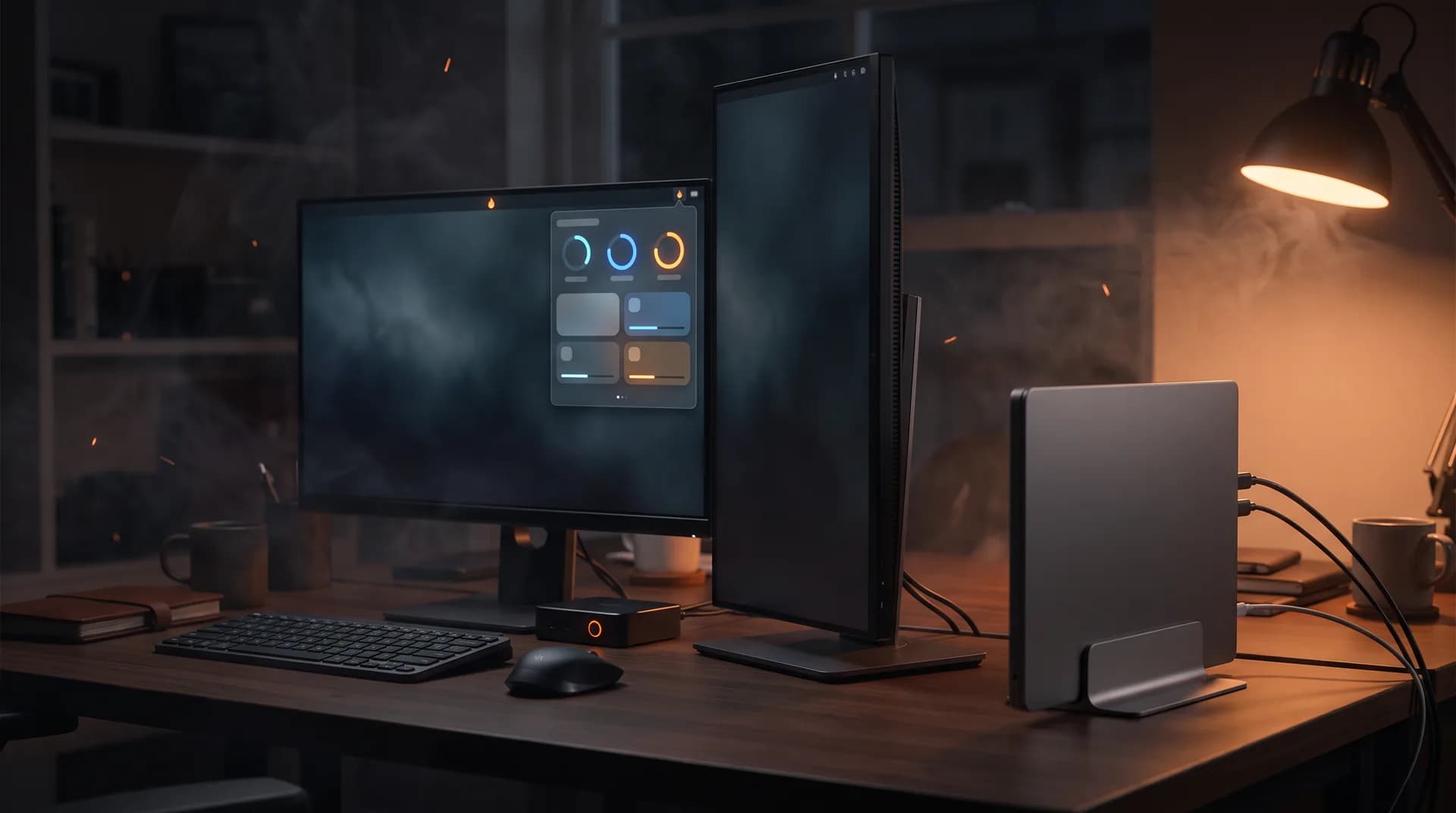
This week I wanted something simple: switch the KVM from the Mac to the PC without the Mac going to sleep.
My MacBook stays closed, connected to two monitors through a KVM that also goes to my PC. When I switched the monitors over to the PC, macOS saw the lid closed and no display connected. And it went to sleep. The running agents, the SSH sessions and the half-finished builds went to sleep with it.
The fix became a new toggle in Brasa. That is when I realized I had never written about it here, even though it is the app that stays open all day on my Mac.
What Brasa is
Brasa is a native menu bar app, built in SwiftUI. Brasa is Portuguese for "ember", and the name comes from the idea of seeing, at a glance, whether everything is still glowing: the Mac working and Claude Code with enough stamina to keep going.
It started from a question I asked myself several times a day: can I keep going on this task, or will I hit the limit halfway through?
Over time, it swallowed other things:
- the CPU, memory and disk monitor I used, Disco;
- LinearMouse, which I only used to give the trackpad and the mouse different scrolling;
- and now what Amphetamine does: keeping the Mac awake with the lid closed.
Two fewer apps open all day, one I never even had to install, and one more icon in the menu bar. Toward the end, I explain why swapping an off-the-shelf app for a homemade one only became worth it now.
The Brasa panel: collapsed, and with the 5-hour window detail open
Claude Code usage, at a glance
The menu bar icon is Brasa's flame inside a ring. The ring is how much of Claude Code's 5-hour window has already been used. The number next to it uses the clock font, with fixed-width digits so it does not keep jumping around.
One click opens a glass panel, in the style of Control Center on macOS 26. The first module is the account:
- The 5-hour window and the week, each with its bar, the percentage and the time it resets.
- The ideal pace mark: a tick on the bar shows where usage would be if it were even until the window resets. If the bar is past the mark, I am burning through it faster than the window can take.
- The week in workdays: "Average of 21% per workday; room for 19% until reset. At this pace, the week runs out on Thursday." That is the sentence that makes me change plans the most.
- Clicking the ring opens the window burn chart: usage so far, the dashed even-pace guide, the limit and, when it makes sense, the dotted projection up to it. Below it comes the pace as a sentence: "+22 pts/h, within the pace that lasts until reset."
The forecast is conservative on purpose. It uses the pace of the last hour and only shows up if usage rose at least 2 points over 10 minutes or more, and if the limit would arrive before the window resets. A forecast that shows up all the time becomes noise.
Further down sits the Now (Agora) module, which answers the opening question before any number: "Claude lasts until reset (2h09)".
And there are alerts (Avisos): a notification about 20 minutes before the window fills up, another when it fills and another when it frees up. That way I wrap up the task at a good stopping point instead of getting cut off halfway.
The numbers come from Claude Code's statusline and from Anthropic itself. A script of mine, which runs alongside Claude Code, records each reading, and Brasa reads that snapshot every 30 seconds or as soon as the file changes. A stale reading does not pretend to be right: the ring turns dotted, with a "?", and the detail says how long ago the last one was.
One detail came from real pain: if a hook or the statusline this reading depends on disappears from Claude Code's settings.json (another app has already removed it once), the panel opens with a warning and a button to turn it back on.
The Mac at work
Right below, three rings: CPU, memory and disk.
- CPU, with the system load.
- Memory, counted the way Activity Monitor does: app, wired and compressed memory. The status comes from macOS memory pressure, not from the percentage. High memory with normal pressure is not a problem; pressure in the warning zone is.
- Disk, with free space counted the way Finder does. Warning from 85% and critical from 95%, because a full disk only matters near the end.
And the Top memory users (Mais usam memória) module: the three apps using the most memory (it expands to five, with swap), adding up the helper processes and whatever was launched from each app's terminal. That makes a difference: Chrome and a terminal full of agents show up with their real weight, not chopped into dozens of processes. Each row has an ⓧ to force quit, with confirmation. The list is only read while the panel is open.
Colors always come with a shape: blue for headroom, orange with a triangle for warning, red with an × for critical. You can read the status even without telling the colors apart.
In the menu bar, you can turn on small CPU, RAM and HD blocks next to the icon, with the label on top and the value below, sized to fit next to the notch.
Menu bar variations: dark, light, no reading, and with the CPU, RAM and HD blocks
Natural scrolling on the trackpad, traditional on the mouse
macOS has a single "Natural scrolling" switch for both the trackpad and the mouse. I want natural on the trackpad and traditional on the mouse wheel. That was the only reason I had LinearMouse.
Brasa handles it with an event tap: it inverts whichever device ended up on the wrong side. With the system switch off, it inverts the trackpad; with it on, it inverts the mouse. To tell which is which, it looks at the event type: the trackpad and the Magic Mouse scroll in continuous events, the mouse wheel scrolls in lines.
This needs the Accessibility permission, and that is where the first fight with the system showed up. Signed ad hoc, the app changes identity on every build, and macOS starts treating each build as a different app. The permission got dropped every time. The way out was a local, self-signed certificate that keeps the same identity across builds.
It also notices when LinearMouse is open (the two together would invert twice) and offers to quit it.
Awake with the lid closed
Back to the start of the post.
With the lid closed, macOS only stays awake while it can see an external display. When the KVM switches computers, the system flags that the closed lid should cause sleep, and the Mac goes to sleep right away.
My first idea was the power assertion any app can request from the system. But the one that covers this case, PreventSystemSleep, is marked in Apple's own header as deprecated since OS X 10.9 and "not supported in any OS X releases". In other words: a regular app, on its own, cannot keep the Mac awake with the lid closed.
What does is pmset -a disablesleep 1, and that needs root. So the toggle (Acordado com a tampa fechada in the panel) works like this:
- The first time you turn it on, macOS asks for your password once. Brasa writes a rule to
/etc/sudoers.d/brasa-tampa, checked byvisudo, that allows only these two commands without a password:
your-username ALL=(root) NOPASSWD: /usr/bin/pmset -a disablesleep 0, /usr/bin/pmset -a disablesleep 1
- From then on, turning it on and off is instant.
- Plugged in only. If the Mac switches to battery, Brasa re-enables sleep on its own and, if the lid is closed with no display, puts the Mac to sleep right away. That is what keeps the Mac from turning into an oven inside the backpack.
- Plug it back in and it locks again. Quit Brasa and it unlocks.
The closed-lid toggle in the panel: off, on while plugged in, and paused on battery
If you have a similar setup and do not use Brasa, the tip still applies: sudo pmset -a disablesleep 1 does it by hand. Just remember to set it back to 0 before putting the Mac away.
On Windows too
The PC on the other side of the KVM got its own Brasa too: the same panel, in the tray next to the clock, built in C# with WPF.
There, memory has two parts: Windows and the Ubuntu running in WSL. The WSL VM has its own ceiling and freezes when it fills up, even when Windows has plenty to spare. That is why the panel shows both, and warns when Ubuntu reaches 90% of its ceiling.
The main concern was not waking Ubuntu up. The Windows app never polls WSL in a loop, because that would keep the VM running all the time. Inside Ubuntu, a systemd timer writes a file every 30 seconds, and the Windows Brasa only reads that file and Windows' own APIs. With Ubuntu shut down, the panel shows the last reading, with its time, and "Ubuntu off".
The logic (rings, forecast, history, alerts and copy) was ported from Swift to a C# library with tests, and the app is compiled on the Mac and installed on the PC over SSH, with a single script.
Custom software in the age of AI
Looking at the list of what Brasa does, you can spot a pattern: almost nothing here is new. There are tons of CPU monitors. LinearMouse handles scrolling really well. Amphetamine has been keeping Macs awake for years.
The point is something else. Each of these apps solves a generic problem for thousands of people, and I used a small slice of each one. From LinearMouse, I used a single toggle. From Amphetamine, I would only need one mode.
Before, swapping an off-the-shelf app for one of my own did not make sense. Writing an event tap, understanding IOKit, figuring out why the Accessibility permission drops on every build, putting together a sudoers rule that visudo accepts: each of those little things was a weekend. I would never have the time. I installed the ready-made app and lived with the 90% I did not use.
With coding agents, that math changed. Per-device scrolling, which replaced LinearMouse, is 182 lines of Swift. The closed-lid toggle is about 260 lines of logic, plus the panel and the tests, and it came out of a single conversation: from the question "does the Mac sleep if I switch the KVM?" to the installed app, with the sudoers rule checked before running as root. I decided what I wanted and reviewed it. The agent read Apple's header, wrote the code, tested it and showed me the previews.
That opens room for a kind of software that barely existed: the app that optimizes one very specific spot in one person's routine. It does not need to work for everyone, it does not need a settings screen for cases you do not have, and it does not need to be sold. It just needs to do exactly what you want, the way you want it.
It became a rule for me: if macOS already does it, I do not keep an app for it. That is how Shottr gave way to the system's built-in screenshots. If macOS does not do it, it goes into Brasa.
The cost did not disappear, it just moved. Now I am the one maintaining it: if macOS changes something, nobody is going to ship an update for me. But maintaining something small, mine and documented costs a lot less than I expected. And with the agent alongside, it is almost always just one more conversation.
How it is built
A few choices that made Brasa easy to maintain:
- No Xcode project. A
build.shcompiles withswiftc, generates the icon, signs, installs to~/Applications, registers the widget and creates a LaunchAgent to open at login. Running it again recompiles and restarts the app. - The icon is drawn by the app itself. The ember, with the flame over glowing coals, is a SwiftUI view that the app exports at 1024 px;
build.shturns that into the.icns. - PNG previews. Brasa has a
--snapshotmode that draws the panels in several states, in light and dark, without opening any window. Every image in this post came from there, with sample data. That changed how I work with agents: they check the interface without stealing focus from my screen. - Widget without a paid certificate. The desktop widget uses WidgetKit, which requires the sandbox. Without a developer certificate there is no App Group, so the app writes a snapshot to a file and the widget reads that file through a read-only sandbox exception.
What I learned
Start from the annoyance, not the idea. No Brasa feature came from a plan. Each one came from an annoyance that kept coming back: hitting the limit mid-task, the mouse scrolling the wrong way, the Mac sleeping on the KVM. An annoyance that returns every week is the best brief there is.
The system pushes back, and every pushback becomes documentation. The deprecated power assertion, the permission that drops with every new signature, the App Group that requires a certificate. None of these things are on the first page of the docs. All of them became a paragraph in the README, so I do not trip over them again six months from now.
Sentences before numbers. The module I look at most is not any of the rings, it is "Now". A sentence that answers the question I actually have ("can I keep going?") is worth more than three percentages.
An interface you can test without a screen. Rendering the panel to PNG from sample data became the way to review the interface, both for me and for the agents.
Conclusion
For now, Brasa is personal: the repository is private and very tied to my setup. And I think that is the point: it is good precisely because it was made for just one person.
If you use AI to code, try the exercise. Look at the small apps that stay open all day and see how much of each one you actually use. If the answer is "one toggle", it might be worth a conversation with your agent. Before, it would not have been worth the time. Today, it might take an afternoon.
And if your Mac also falls asleep when you switch the KVM, now you know: pmset disablesleep.